
A custom GPT that can only talk in a chat window is a novelty. A custom GPT that can look up a deal, summarize a lead, or log a call note directly in your CRM is a working part of the business. The gap between those two is a single connection, and most SMEs never close it because the setup looks more technical than it actually is.
Dominik Gabor, an AI automation consultant based in the Netherlands, connects custom GPTs to CRMs as a standard part of building an AI Operating System for clients. The pattern he uses is almost always the same: route the connection through a workflow tool the business already owns, scope access to one task at a time, and test read-only before anything gets written back.
This post covers the 3 ways to make that connection, a full step-by-step build using the most accessible method, a worked example, and the security decisions that matter more than the technology choice itself.
A custom GPT to CRM integration is a connection that lets a GPT call your CRM's data during a conversation, using ChatGPT's built-in Actions feature. An Action is defined by an authentication method (none, API key, or OAuth) and a schema describing what the API can do. In practice, most SMEs don't point the Action straight at the CRM's raw API. They point it at a workflow tool like n8n, which already has a native CRM connector and handles the field mapping and logic in between.
Key Takeaways
- 3 ways to connect: native GPT Actions against the CRM's API, a workflow-tool bridge (n8n, Zapier, Make), or a fully custom backend integration.
- The n8n bridge is the fastest path for most 10-50 person businesses, since it needs no custom backend code and n8n already has native CRM nodes.
- Read-only first, always. Confirm the GPT retrieves the right records before granting any write permission.
- Scope the API key to one object type. A shared admin key with full read-write access is the single most common way these integrations go wrong.
- Map fields explicitly. Never let the model guess a CRM field name; an incorrect guess writes to the wrong place silently.
Why Connect a Custom GPT to Your CRM
Most of what a sales or account team does inside a CRM is retrieval and small updates: look up a contact's history before a call, summarize the last five emails from a lead, log what was discussed, update a deal stage. None of that requires judgment a human has to apply every single time. It requires the same lookup, formatted the same way, done consistently.
A custom GPT connected to the CRM turns that retrieval work into a question typed in plain language instead of a multi-click search through pipeline views and filters. "Summarize my last three interactions with this lead and draft a follow-up" becomes one message instead of five minutes of clicking through history tabs.
The businesses that get real value from this connection are the ones that start narrow. One task, one object type, one clear success measure, tested before it touches live customer data.
The 3 Ways to Connect a GPT to a CRM
| Method | Best for | Needs a developer | Setup time |
|---|---|---|---|
| Native GPT Action → CRM API | Teams on ChatGPT Enterprise/Team already comfortable with OpenAPI schemas | Usually, to write and maintain the schema | 1-2 days |
| Workflow-tool bridge (n8n, Zapier, Make) | Most SMEs, one task at a time, teams that want the workflow layer self-hosted (n8n) | No, for a single-task integration | 4-8 hours |
| Custom backend integration | Complex, multi-object workflows or regulated data with strict audit requirements | Yes | Days to weeks, depending on scope |
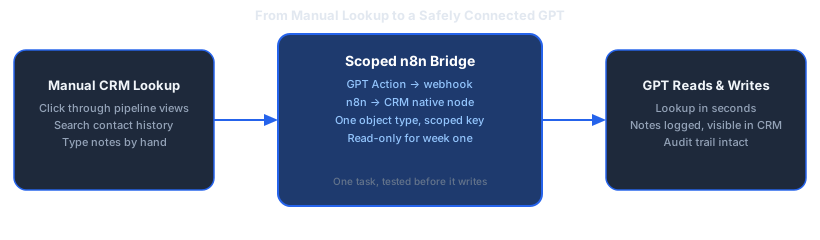
Recommendation for most SMEs: start with the workflow-tool bridge. n8n is the natural fit if the business already runs other automations on it, since the CRM connection reuses the same credentials, the same visual canvas, and the same self-hosting option that keeps data on infrastructure the business controls. Move to a native Action or a custom backend only once a single-task bridge is running reliably and the next task genuinely needs it.
Step-by-Step: Building the n8n Bridge
- Pick one CRM task. Not "connect the CRM." Pick one thing: summarizing a lead, logging a call note, or checking a deal stage.
- Connect the CRM in n8n. Add the native node for your CRM (HubSpot, Pipedrive, or similar) and authenticate with OAuth or a scoped API key, never the main admin login.
- Build the webhook the GPT will call. Add a Webhook trigger node. This single URL becomes the only thing the GPT ever talks to.
- Add the GPT Action. In the ChatGPT GPT builder, define an Action with an OpenAPI schema pointing to that webhook, authentication set to API Key.
- Map fields explicitly. Name the exact CRM fields the workflow reads and writes in the schema description. Do not leave field mapping to inference.
- Test read-only for one week. Confirm the GPT retrieves the correct records for real queries before any write action is enabled.
- Turn on scoped write access. Enable writing only for the single object type and fields the task needs, nothing broader.
- Review the audit log weekly for the first month, checking what the GPT actually wrote against what was intended.
Most business owners complete steps 1 through 6 for a single task in an afternoon. Step 7, turning on write access, should never happen the same week as step 6. That gap is where most of the integration's safety actually lives.
A Worked Example: Lead Summaries Into HubSpot
Here is what this looks like applied to a hypothetical 12-person marketing agency in Rotterdam running HubSpot.
The task: when a new lead fills out the contact form, the sales lead wants a custom GPT to read the lead's message, check HubSpot for any prior contact history, and draft a one-line summary plus a suggested next action, without opening HubSpot manually.
The build: HubSpot's contacts and deals endpoints are connected to n8n through its native HubSpot node, authenticated with an API key scoped to read-only on contacts and deals. A webhook trigger receives the lead's ID. The workflow pulls the contact record and any deal history, and returns it to the GPT as structured text. The custom GPT's Action calls that one webhook and nothing else in HubSpot directly.
For the first week, the GPT only reads. The sales lead checks every summary against what is actually in HubSpot before trusting it. In week two, a second n8n step is added that lets the GPT log a note back to the contact record, scoped so it can only write to the notes field, never edit deal values or contact details.
By week three, the sales lead uses the GPT before every call to get a 30-second summary instead of a five-minute manual lookup, and every note the GPT logs is visible in HubSpot's own activity history, so nothing happens invisibly.
Scope your CRM connection before you build it
Connecting a GPT to a CRM goes wrong fastest when access is too broad, too soon. In 30 minutes we map which CRM task is worth automating first and exactly how narrow the access should be.
- The one CRM task worth automating first
- How narrow to scope the API access
- Whether n8n, a native Action, or custom code fits your setup
30 minutes. No obligation. No pitch unless you ask for one.
Or grab the free resources first →Security and Permissions: What to Lock Down First

The technology choice between n8n, a native Action, or a custom backend matters less than three permission decisions that apply regardless of which method gets used.
Scope the API key to one object type. A key with full read-write access to every contact, deal, and pipeline in the CRM is the single most common mistake in early integrations. Create a key that can only touch the object the task actually needs.
Prefer OAuth over a static key where the CRM supports it. OAuth tokens can be revoked and rotated without changing every workflow that depends on them. A static API key that leaks means rebuilding trust from scratch.
Log every write, and check the log. An integration that writes to the CRM without a visible trail is an integration nobody notices breaking until a customer complains about wrong information in their record.
What GDPR Requires Before You Connect This
For Dutch and German SMEs specifically, a CRM almost always holds personal data covered by GDPR, and this integration sends some of that data to OpenAI. Self-hosting n8n is worth doing, but be clear about what it does and does not solve: it removes one intermediary from the path, and it keeps your workflow logic on infrastructure you control. It does not change the fact that the records the GPT reads are processed by OpenAI. That transfer is the part GDPR cares about, and no amount of self-hosting removes it.
Four things to settle before a single live customer record moves through the connection:
- Get a data processing agreement in place. Sending customer data to OpenAI makes them a processor acting on your instructions. ChatGPT Team, Enterprise, and the API come with a DPA and do not train on your business data by default. A personal ChatGPT Plus account is not built for this, so check which tier you are actually on before connecting anything.
- Decide your legal basis, and check the transfer. Legitimate interest usually covers internal sales operations, but the reasoning belongs in writing rather than in your head. Confirm the data protection terms your provider offers for moving personal data outside the EU.
- Send the minimum fields, not the whole record. Data minimisation is the legal version of the scoping advice above. A GPT drafting a follow-up needs the conversation history, not the contact's phone number, address, and full deal value. Every field you leave out is one you never have to account for.
- Update your record of processing activities. Article 30 expects a register of what you process and who processes it. A new AI processor touching customer data is exactly the kind of change that belongs in it, and the write log from the previous section is the evidence that backs it up.
None of this stops the project. It is an afternoon of paperwork that turns a useful integration into a defensible one, and it is far cheaper to do before launch than to reconstruct afterwards. For the wider regulatory picture heading into the August 2026 deadline, see the guide to EU AI Act compliance for Dutch SMBs.
Mistakes That Break GPT-CRM Integrations
- Granting write access before read-only testing. Skipping the test week means the first mistake the GPT makes happens directly in a live customer record.
- Letting the model guess CRM field names. An assumed field name that is close but wrong writes data to the wrong place without any error being raised.
- Using one shared admin key for everything. A single broad credential means every integration inherits the same wide blast radius if anything goes wrong.
- Skipping the OpenAPI schema for vague instructions. A GPT Action without a precise schema produces inconsistent calls to the CRM, the same way a vague prompt produces inconsistent text output.
- Connecting the whole CRM instead of one object type. Trying to wire up contacts, deals, tickets, and companies in the first pass multiplies the surface area for something to go wrong before any of it has been tested.
Two years testing 27+ AI tools taught Dominik the same lesson here that applies to every automation: the connection is the easy part, the scoping is the product. Spend the extra hour narrowing access before the integration goes live, not after something needs fixing.
For the broader pattern this fits into, the step-by-step workflow migration guide covers testing any automation in parallel with the manual process before switching over fully, which applies directly to a CRM bridge. For the wider case for custom GPTs generally, see the custom GPT use cases that teams actually keep using.
Frequently Asked Questions
Can a custom GPT read and write to my CRM directly?
Yes. ChatGPT's Actions feature lets a custom GPT call an external API defined by an OpenAPI schema, with authentication set to none, an API key, or OAuth. In practice, most SMEs connect through a workflow tool like n8n or Zapier sitting between the GPT and the CRM instead of writing a direct API integration by hand, since the workflow tool already has a native CRM connector built in.
Do I need a developer to connect a custom GPT to my CRM?
Not for a first, single-task integration. Building a GPT Action that calls an n8n webhook, which then talks to the CRM through its native node, is achievable without writing backend code. Where it stops being a DIY job is anything touching customer records at scale, payment data, or a workflow with a compliance obligation attached, at which point scoped permissions and audit logging are worth getting right by someone who does this daily.
Is it safe to give a custom GPT direct access to CRM data?
It is safe when access is scoped narrowly: a dedicated API key limited to one object type, read-only access during the first testing period, and an audit trail of every write the GPT makes. It is not safe to connect a GPT using a shared admin key with full read-write access to every CRM object on day one, which is the single most common mistake in early custom GPT to CRM integrations.
Is connecting a custom GPT to a CRM GDPR compliant?
It can be, but not automatically. The CRM data the GPT reads is processed by OpenAI, which makes them a processor acting on your instructions, so you need a data processing agreement in place. ChatGPT Team, Enterprise, and the API include one and do not train on your business data by default, unlike a personal ChatGPT Plus account. Beyond the agreement, document your legal basis, send only the fields the task actually needs rather than the whole contact record, and add the new processor to your Article 30 record of processing activities. Self-hosting n8n removes one intermediary from the path but does not remove the transfer to OpenAI, so it is not on its own a compliance answer.
Which CRMs support ChatGPT integration in 2026?
Most mainstream CRMs, including HubSpot, Pipedrive, and Salesforce, expose an API that a workflow tool like n8n, Make, or Zapier can connect to, which is what a custom GPT Action ultimately calls. Rather than checking whether a specific CRM has a native ChatGPT plugin, check whether it has a documented API and an existing node in your workflow tool of choice. That combination covers the large majority of SME CRM setups.
What's the difference between GPT Actions and using n8n to connect a GPT to a CRM?
GPT Actions is the mechanism ChatGPT uses to call any external API from inside a custom GPT. n8n is a workflow tool that already has native connectors for most CRMs. Using n8n as the bridge means the GPT Action only ever calls one simple webhook, and n8n handles the CRM-specific authentication, field mapping, and any additional logic. Building a direct GPT Action against the CRM's raw API works too, but it means maintaining that integration by hand instead of inside a visual workflow.
The Bottom Line
For most 10-50 person businesses, the fastest and safest way to connect a custom GPT to a CRM is through a workflow-tool bridge like n8n, not a direct API integration or a full custom backend. Pick one task, scope the access to one object type, test read-only for a week, and only then turn on writing. The technology choice matters far less than the sequencing of permissions around it.
The businesses that get this wrong usually skip straight to write access with a broad key because the demo looked impressive in testing. The businesses that get it right treat the first week as a read-only trial run, and the integration earns trust before it earns permission.
The Complete Picture
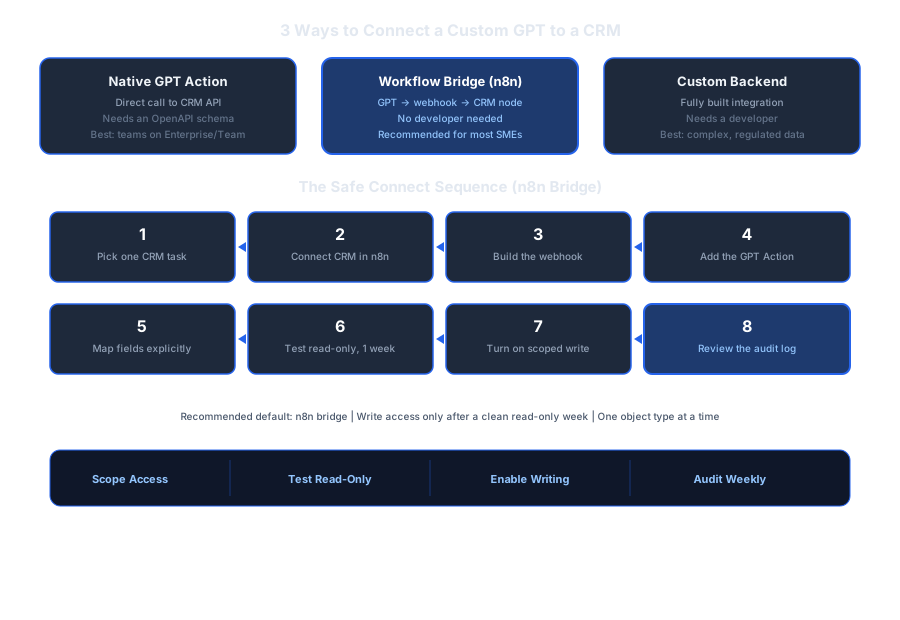
Save or share this: the 3 methods and the safe connect sequence in one view.
Find Out Which CRM Task to Automate First
Every CRM setup has a different highest-value task worth connecting first. Book a free 30-minute AI Profit Assessment and leave with a clear answer: which task to automate, how to scope access safely, and which of the 3 connection methods fits your stack.
Most teams are surprised by how much manual CRM lookup time disappears once the first connection is scoped correctly.
Book Your Free AI Profit Assessment Or start with the free AI workflow audit checklist →
About Dominik Gabor
AI Automation Consultant based in the Netherlands. Dominik helps small and mid-size businesses connect custom GPTs to the tools they already run, CRMs included, using the same scoped, read-only-first sequencing covered in this post. He has spent 2+ years testing 27+ AI tools daily, and writes to give business owners the exact, practical starting points that most AI content skips over.