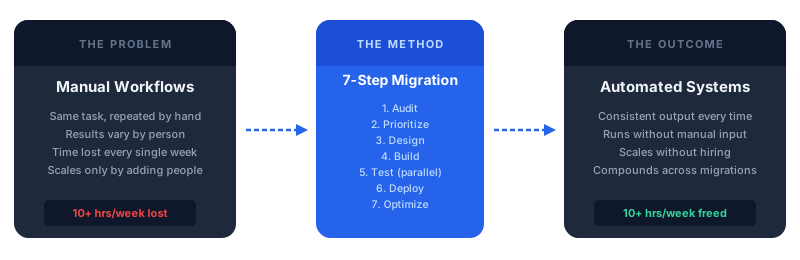
Most business owners know which tasks are wasting their team's time. They know because the same complaints surface every week: the report that takes two hours to compile, the follow-up emails nobody sends consistently, the invoice reminders that only go out when someone remembers. Learning how to automate business workflows properly is the difference between a disruption-free migration and a chaotic rollback.
Knowing which processes to automate is easy. Knowing how to migrate them without causing disruption is where most attempts stall.
Dominik Gábor, an AI automation consultant based in the Netherlands, has helped European SMEs migrate dozens of manual workflows to automated systems over the past two years. The core lesson from that work: the tool choice matters far less than the migration sequence. Get the sequence wrong and you disrupt operations. Get it right and the team barely notices the transition until they realize the manual work has disappeared.
This guide covers the full 7-step migration method. You can apply it to any repeating workflow in your business, regardless of the tools you use. The principles are the same whether you are automating invoice reminders, lead follow-up, weekly reporting, or HR onboarding.
Workflow migration is the process of moving a business task from a manual, human-driven process to an automated, system-driven one. It includes documenting the current process, designing the automated version, building and testing it alongside the existing process, and switching over once the output quality is confirmed. A successful migration leaves the same output quality or better, with zero or minimal human input required each time the task runs.
Key Takeaways
- Audit before you build: One week of shadow workflow documentation produces a prioritized automation list that prevents you from automating the wrong things first.
- Design on paper, then build in the tool: Teams that skip the design step rebuild their automations two to three times. Teams that design first rarely need to redo the build.
- Parallel testing is non-negotiable: Running manual and automated side-by-side for one week catches edge cases before they cause real damage. Skipping this step is the most common cause of automation rollbacks.
- The first migration takes longest: Once you understand the trigger-to-output pattern, subsequent migrations go significantly faster. Most teams complete five workflow migrations in a single quarter after the first one.
- GDPR matters for NL and DE SMEs: Use n8n self-hosted so your data stays on your own infrastructure. Automation should not create new compliance risks.
The Migration Mindset: Not Everything Should Be Automated
The most important decision in any workflow migration is whether to automate the process at all.
Automation works for tasks that follow consistent rules every time: if this happens, do that, in this format, with this output. It fails on tasks that require human judgment, context that changes unpredictably, or relationship nuance that no prompt can capture reliably.
Before applying the 7-step method, run every candidate workflow through a simple filter. Ask three questions:
- Does this task happen at least once per week? Low-frequency tasks rarely justify the setup time. Start with high-frequency work.
- Does this task follow the same pattern every time? If two people on your team do the same task differently, document and standardize it first, then automate it.
- Would the output quality be verifiable? You need to be able to check whether the automation did the right thing, especially in the first 30 days. Tasks with no clear success criteria are poor automation candidates until you define those criteria.
If a workflow passes all three checks, it belongs on your automation list. If it fails even one, fix what's broken before building anything automated on top of it. Automating a broken process just makes the mistakes arrive faster.
Step 1: Audit Your Current Processes (The Shadow Workflow Method)

The shadow workflow method is simple: for one week, document every task your team performs. Not from memory. Not from a job description. From what actually happens each day.
For each task, record:
- Task name: What is it called? Be specific ("Send invoice follow-up email" not "billing admin").
- Time per occurrence: How long does it take each time?
- Frequency: Daily? Weekly? Per client? Per order?
- Consistency score: Does it happen the same way every time (1 = completely inconsistent, 5 = perfectly consistent)?
- Decision points: Are there moments where a human makes a judgment call? List each one.
At the end of the week, you have a list of tasks ranked by time cost. Multiply time per occurrence by weekly frequency to get your weekly hours per task. This number is your baseline. When you automate a workflow and the task disappears from the list, that is your measurable return.
The shadow method produces two additional benefits that most businesses skip entirely. First, it surfaces processes that nobody has documented anywhere, running entirely in one person's head. These are the highest-risk tasks in your business, because if that person leaves, so does the process. Second, it reveals tasks your team thinks take 20 minutes that actually take 90 minutes when you track them honestly. Both of these findings change your prioritization.
According to Dominik Gábor, the average SME team running the shadow workflow method for the first time finds 8 to 12 automatable workflows they had not previously identified. The three that rise to the top almost always involve the same categories: client communication follow-up, data collection and entry, and scheduled reporting.
Step 2: Prioritize Using the Impact-Effort Matrix
With your workflow audit complete, you have a list of candidates. Now you need to sequence them. The Impact-Effort matrix makes this objective.
Draw a 2x2 grid. The vertical axis is impact: how much time does automating this save, and how critical is the output to your business? The horizontal axis is effort: how complex is the automation, and how many tools does it connect?
The four quadrants tell you what to do with each workflow:
- High impact, low effort: Start here. These are your quick wins. Build them first to generate momentum and prove the value of automation to your team.
- High impact, high effort: Plan for these in your second and third migrations. The return justifies the complexity, but you need the pattern recognition from simpler builds first.
- Low impact, low effort: Only build these after the first two categories are done. They are satisfying to complete but do not move the needle.
- Low impact, high effort: Do not automate these. The return does not justify the cost. Revisit if the process changes significantly.
For most SMEs running this exercise for the first time, the top-right quadrant (high impact, low effort) contains two to three workflows. These are almost always: an email follow-up sequence, a recurring report, or a data entry task from one tool into another. Build those first.
One rule that applies regardless of where a workflow lands on the matrix: never automate a workflow that your team cannot describe step-by-step without pausing to check how they usually do it. If the process is not clear enough to document, it is not ready to automate.
Step 3: Design the Automated Version Before You Build
This step is where the majority of failed automation projects diverge from successful ones. Most teams open their automation tool and start connecting nodes. They figure out the logic as they go. They rebuild the workflow two or three times before it works.
Teams that design first, build once.
Before touching n8n, Make, or any other tool, write out the automated workflow in plain language or draw it as a simple diagram. Every automation has the same four components:
- Trigger: What event starts this workflow? (New form submission, scheduled time, incoming email, database change.)
- Logic: Are there any conditions or branches? (If the client is tagged "VIP", use template A. If not, use template B.)
- AI step: Does this workflow need a Claude or similar step to generate, classify, or summarize content? If yes, write the prompt now, before the build.
- Output: Where does the result go? (Send an email, create a Notion page, update a CRM field, post to Slack.)
Writing the Claude prompt at the design stage, before you are inside the tool, produces dramatically better prompts. When you are designing, you think carefully about what the output needs to contain and in what format. When you are inside the tool already, you write the first prompt that comes to mind and test it, which produces inconsistent output that takes three rounds of iteration to fix.
The design document does not need to be formal. A notebook page or a Notion note with the four components is enough. The goal is to make every decision before the build, so the build is just execution.
Step 4: Build Starting with the Simplest Workflow

With the design complete, open your automation tool and build one node at a time. Start with the trigger. Test it by firing the trigger manually and confirming the data arrives correctly in the workflow. Only then add the next node.
The node-by-node build pattern solves the most common failure mode in automation setup: building an entire workflow and then testing it at the end, only to find that the problem is somewhere in the middle and you do not know where.
For the Claude AI node, paste in the prompt you wrote during the design step. Run three real examples from your business through it. If the output is consistent and useful on all three, the prompt is ready. If not, adjust the format instructions. The most common fix is to add stricter output constraints: "Output only the email body. No subject line. No greeting. Maximum 4 sentences."
A practical tip from testing 27+ tools across dozens of workflow builds: spend at least 60% of your build time on the AI prompt and less than 40% on the node configuration. The node connections are technical and largely consistent. The prompt determines whether the output is useful. Treat it accordingly.
For tool selection, n8n is the recommended starting point for European SMEs. It is self-hostable (critical for GDPR compliance in the Netherlands and Germany), connects to 400+ business apps, and has a native Claude integration. Make is a strong alternative with a more intuitive visual interface if the n8n learning curve feels steep on the first build.
Step 5: Test by Running Manual and Automated in Parallel
Once the build is complete and the initial tests pass, do not switch over. Run the automated workflow alongside your existing manual process for one full week.
During this parallel run:
- Continue performing the task manually as you always have.
- Let the automation run simultaneously and capture its outputs.
- Review the automated output daily: is it accurate, complete, and in the right format?
- Document any cases where the automation failed or produced substandard output.
The parallel run reveals edge cases that test data never surfaces. Real business data is messier than your test examples: names with unusual characters, emails with attachments, CRM entries with missing fields. These are the situations that break automations in production, and catching them during the parallel week is far cheaper than catching them after you have switched over.
The switch-over decision is simple: if the automation produces equal or better output than the manual version in at least three consecutive correct runs, it is ready to deploy. If it fails even once during that window, investigate and fix before switching. The cost of one week of parallel running is small. The cost of an automation failure in production is high.
Step 6: Deploy with a Rollback Plan
Deployment is the point where you stop doing the task manually and let the automation run it entirely. It should feel like a quiet event. If your parallel testing was thorough, the switch-over is anticlimactic. That is the goal.
Two things to do before switching over:
- Write a one-page rollback procedure. If the automation breaks at 9am on a Monday, what does the team do? Who reverts to the manual process? Where is the manual procedure documented? Keep this accessible for the first 30 days. After 30 days of reliable operation, you can archive it.
- Brief the team. Anyone affected by this workflow needs to know: the task now runs automatically, here is what to expect, and here is what to do if something looks wrong. A 5-minute team update prevents confusion and ensures that problems get reported rather than silently tolerated.
After deployment, monitor the automation's outputs for the first week at the same frequency you reviewed them during the parallel run. If it runs without issues for five consecutive days, you can reduce monitoring to a weekly spot-check.
Step 7: Optimize Based on Real Usage Data
After 30 days of live operation, the automation has enough real data for a meaningful review. Pull the output logs and look for patterns in the failures or near-misses.
Optimization at this stage focuses on the two or three most frequent failure patterns, not on perfecting everything at once. Ask:
- Which input conditions cause the automation to produce substandard output?
- Are there new edge cases that did not appear during testing?
- Has the process itself changed since the automation was built, requiring an update to the workflow logic?
Fix the highest-frequency issues first, then re-run a two-day parallel test before pushing the update live. This keeps the optimization loop tight and prevents the workflow from drifting out of alignment with the actual business process over time.
The 30-day review also surfaces a second category of opportunity: tasks that became visible only after the automation freed up time. When your team stops spending two hours per week on invoice reminders, they notice other tasks that could follow the same pattern. The first automation creates the case for the next one. This compounding effect is why businesses that run even one successful migration typically complete five to eight total within the first year.
The Migration Timeline: What to Expect at 30, 60, and 90 Days
For SMEs starting from zero, here is a realistic timeline:
Days 1-30: First Migration
Week 1 is the audit. Weeks 2 to 3 are design and build. Week 4 is the parallel run and deployment. By day 30, one workflow is live. The team has learned the migration pattern. The time saved from the first automation starts accumulating immediately from deployment.
Most teams find that the first 30 days reveal a second, simpler migration that they can complete significantly faster because the tool is already configured and the patterns are familiar.
Days 31-60: Second and Third Migration
The second migration takes roughly half as long as the first because the tool setup is done, the pattern is understood, and the team is no longer learning and building simultaneously. By day 60, two to three workflows are typically live, saving an average of 10+ hours per week across the team.
This is also when the broader team starts requesting automations for their own workflows. The visibility of the first results generates internal demand. Managing that demand by sticking to the 7-step method, rather than rushing builds, prevents quality from degrading.
Days 61-90: Scaling and Refinement
By day 90, the initial automations have been running long enough to have meaningful performance data. The 30-day optimization reviews are complete. The team is faster at each step of the migration process. Businesses that reach day 90 with three or more live automations typically identify their next five targets with confidence, because they now understand which of their workflows fit the automation criteria and which do not.
Dutch and German SMEs in particular tend to see strong results at the 90-day mark because the initial investments in GDPR-compliant infrastructure, such as a self-hosted n8n instance, pay dividends across every subsequent migration. The compliance layer is built once and reused.
Common Pitfalls When You Automate Business Workflows
These are the failure patterns Dominik Gábor sees repeatedly in SME workflow migrations:
Pitfall 1: Automating a process that is not yet documented
If your team cannot write down every step of a process without consulting each other, the process is not ready to automate. The automation will encode inconsistencies that are invisible until they appear as errors in production. Document first, standardize second, automate third.
Pitfall 2: Skipping the parallel test week
The most common shortcut teams take when they are excited about a new automation is to skip directly from build to deployment. This works until the first edge case hits. In production, that edge case usually causes a client-facing error or a data problem that requires manual cleanup. The one-week parallel run costs seven days. The cleanup from a skipped parallel run costs two to five times longer.
Pitfall 3: Building too many workflows at once
Teams that try to automate five workflows simultaneously do not complete any of them cleanly. Context switching between builds increases errors and delays deployments. Build one workflow through all seven steps before starting the next. The sequential approach feels slower but produces more total automations in the first 90 days than parallel building.
Pitfall 4: Neglecting the Claude prompt
When an automation produces inconsistent output, teams typically troubleshoot the workflow configuration first. In most cases, the problem is the prompt. The prompt is the intelligence layer in any AI-powered workflow. A vague prompt produces vague output. A specific, constrained prompt with an explicit output format produces usable output every time. Treat prompt writing as a skill worth investing in from the first migration.
Pitfall 5: No monitoring after deployment
Automations drift. The business process changes, the input format shifts slightly, or the connected tool updates its API and breaks a node. A workflow that is not monitored will silently fail at some point, and the failure will only surface when a client or colleague notices a missing output. Set a weekly spot-check for every live automation. It takes ten minutes and catches problems before they become visible externally.
For a deeper look at how to build the automation infrastructure that ties multiple workflows together, see the complete guide to AI automation for SMEs and the honest comparison of Claude Code and n8n.
Map your first workflow migration in 30 minutes
Most SMEs have three to five workflows that are ready to automate right now. In a free 30-minute call, we run your process list through the Impact-Effort matrix and identify which migration to start with and exactly how to set it up.
- Which of your workflows to automate first
- The specific tool stack for your existing setup
- A realistic timeline for your first deployment
30 minutes. No obligation. No pitch unless you ask for one.
Or grab the free resources first →Frequently Asked Questions
How do I start automating my business workflows?
Start with an audit, not a tool. Spend one week documenting your team's repetitive tasks: what they are, how long they take, and whether they follow the same pattern every time. This produces a prioritized list. The first workflow to automate is the one with the highest weekly time cost and the most consistent steps. For most SMEs, that is lead follow-up, invoice reminders, or weekly reporting.
What should I not automate?
Do not automate a process that is not yet documented or that your team performs differently each time. Also skip tasks that require genuine relationship context, legal judgment, or unpredictable input that a prompt cannot handle reliably. The classic mistake is automating a process that is already broken. Fix the process first, then automate the fixed version.
How long does it take to migrate from manual to automated workflows?
A single workflow migration takes one to three weeks from audit to live deployment. The first migration takes longest because you are learning the tool and the pattern simultaneously. The second is typically twice as fast. A business covering its top five workflows realistically reaches full deployment in 60 to 90 days. After that, the team has enough fluency to add new automations in days rather than weeks.
Which automation tool is best for European SMEs in 2026?
For European SMEs, n8n is the recommended tool in 2026. It is self-hostable, which satisfies GDPR data sovereignty requirements for Dutch and German businesses, connects to 400+ business apps, and has native AI integration for Claude. Make is a strong alternative for simpler workflows with a lower initial learning curve. Both outperform Zapier on cost efficiency once you are running more than two or three active workflows.
The Bottom Line
Workflow migration is a sequence, not a project. Run the audit, prioritize the list, design before you build, run the parallel test, and deploy with a rollback plan. Done in that order, the first automation goes live in two to three weeks and starts saving time immediately. Done out of order, most businesses hit the same wall: a broken automation in production and a team that does not trust the process. The 7-step method exists to prevent exactly that, and it takes less total time than rebuilding a workflow from scratch after a failed shortcut.
The compounding effect is real: each successful migration makes the next one faster, and the time savings from three live automations free up enough capacity to start a fourth without it feeling like extra work. According to Dominik Gábor, businesses that reach their third migration almost always reach their eighth, because by that point automation has become the default response to any repeating task.
Start with the audit. The list it produces will tell you exactly what to build first.
The Complete Picture
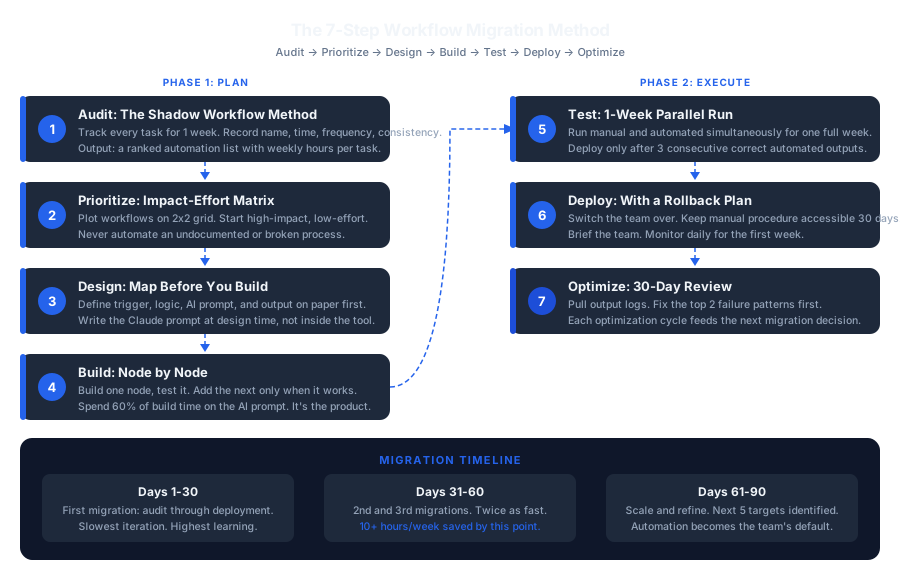
Save or share this: the full migration method in one view.
References
All performance figures cited in this post reflect observations from Dominik Gábor's hands-on consulting work with European SMEs and from two years of personal testing across 27+ AI and automation tools. No external studies are cited in this post. Where the author states estimates or typical ranges (such as migration timelines and time savings), these reflect patterns observed across multiple client implementations and are presented as general guidance, not guaranteed outcomes.

About Dominik Gabor
AI Automation Consultant based in the Netherlands. Dominik helps small and mid-size businesses migrate manual workflows to automated AI-driven systems, from lead response and invoice follow-up to reporting and content pipelines. He has spent 2+ years testing 27+ AI tools daily and writes to give business owners the exact, practical steps that most AI content skips over.